
NAND-X Tutorial
How to use the NAND-X to read/write Xbox 360 NAND dumps for standard NAND consoles (PHAT, Trinity, Corona 16MB). Can also program glitch chips.
What is the NAND-X?
The NAND-X is a reliable NAND programmer that reads NAND in 2-8 minutes and can also program glitch chips. It's a solid option for standard NAND work on Xbox 360 consoles.
Important limitations: The NAND-X does not support 4GB NANDs and cannot be used for flashing Sonus Sounds. For Corona consoles with 4GB NAND, you'll need to use PicoFlasher, xFlasher 360, or another 4GB-compatible flasher.
Equipment Needed
- NAND-X
- Mini-USB cable to connect the NAND-X to your computer
- SPI cable (comes with the NAND-X kit)
- Soldering iron, solder, flux, and isopropyl alcohol with cotton swabs
- J-Runner with Extras installed on your PC
Installing NAND-X Drivers
Important: If you are on Windows 10, you will need to disable signed driver enforcement before proceeding.
- Download and extract J-Runner with Extras.
- Press Win+R and type
devmgmt.mscand press Enter to open Device Manager. - Plug the Mini-USB cable into both your NAND-X and your PC.
- Windows should find it and it will appear as NAND-X or two USB Serial Port entries under the "Other Devices" category in Device Manager.
- Right-click the NAND-X's name in Device Manager and select Update Driver Software…
- Select Browse my computer for driver software
- Click Browse… and navigate to your J-Runner folder → common → drivers
- Click OK and then Next.
- You may receive a popup saying that Windows can't verify the publisher of the driver, select the option to install it anyway.
- It should successfully install and file your device under its own category in Device Manager.
Your NAND-X's LED light should turn green when drivers are properly installed. If you encounter issues, try running J-Runner as Administrator (Right-click J-Runner → Run as Administrator).
Wiring Diagrams
Your NAND-X kit will come with a cable with a white plug on one end and open wires on the other. Solder each wire according to the diagram below.
Important: Note that the wire colors may be different than the picture below in a knockoff kit, so go off of the wire position and not the color of the wires in that case.
PHAT Wiring Diagram
Use the diagram below to wire your NAND-X to the PHAT motherboard. Double-check continuity and avoid long unshielded wire runs.
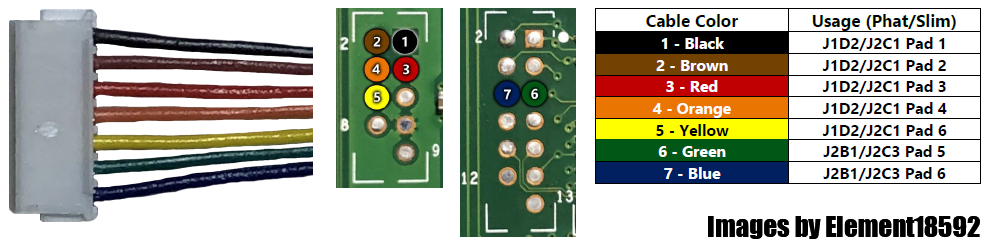
PHAT Installation Steps
- Identify your PHAT motherboard revision (Xenon, Zephyr, or Falcon).
- Solder the wires from your NAND-X cable to the console following the diagram above.
- Clean up any flux with isopropyl alcohol and cotton swabs.
- Plug the white end of the cable into the bottom port of the NAND-X.
- Plug the Mini-USB cable into the NAND-X and your PC.
- Open J-Runner on your PC.
- Plug your Xbox 360 power supply in, but do not turn the console on.
- Click Read NAND in J-Runner.
Trinity Wiring Diagram
Use the diagram below to wire your NAND-X to the Trinity motherboard. Double-check continuity and avoid long unshielded wire runs.
Trinity Installation Steps
- Solder the wires from your NAND-X cable to the console following the diagram above.
- Clean up any flux with isopropyl alcohol and cotton swabs.
- Plug the white end of the cable into the bottom port of the NAND-X.
- Plug the Mini-USB cable into the NAND-X and your PC.
- Open J-Runner on your PC.
- Plug your Xbox 360 power supply in, but do not turn the console on.
- Click Read NAND in J-Runner.
Corona Wiring Diagram
Use the diagram below to wire your NAND-X to the Corona motherboard. Double-check continuity and avoid long unshielded wire runs.
Corona Installation Steps
- Solder the wires from your NAND-X cable to the console following the diagram above.
- Clean up any flux with isopropyl alcohol and cotton swabs.
- Plug the white end of the cable into the bottom port of the NAND-X.
- Plug the Mini-USB cable into the NAND-X and your PC.
- Open J-Runner on your PC.
- Plug your Xbox 360 power supply in, but do not turn the console on.
- Click Read NAND in J-Runner.
Important Notes
Note: The NAND-X does not support 4GB NANDs. For Corona consoles with 4GB NAND, you'll need to use PicoFlasher, xFlasher 360, or another 4GB-compatible flasher.
Reading the NAND
- Plug your Xbox 360 power supply in, but do not turn the console on. You can leave the RF board disconnected to prevent turning it on by accident.
- Plug the white end of the cable into the bottom port of the NAND-X.
- Plug the Mini-USB cable into the NAND-X and your PC.
- Launch J-Runner. Select "Read NAND" in the top left.
- It may prompt you for your Xbox 360's model, make the correct selection and click OK.
- If everything is wired properly, it will read your NAND twice and automatically compare the dumps. The NAND-X typically takes 2-8 minutes to complete a read.
- If it says "Device Not Found" or anything about missing CB/CD files, see the troubleshooting steps below.
- If you get messages about bad blocks, ignore them.
- When it has finished, it will tell you if the two dumps are an exact match. If they are, you can close J-Runner and proceed. If they aren't, take more dumps until you get matching ones.
- Copy both of the dumps to a safe place such as cloud storage or send it to yourself in an email to keep them safe. They are located in the output folder in the J-Runner directory.
Writing XeLL to the NAND
- In J-Runner, select "…" next to the Load Source field and choose your nanddump1.bin or nanddump2.bin file.
- Select the appropriate radio button in the top right of the window:
- JTAG - For JTAG, R-JTAG, or R-JTOP.
- Glitch - For RGH1.
- Glitch2 - For RGH1.2, RGH2, RGH3, EXT_CLK, Muffin/Mufas, or S-RGH.
- Glitch2m - Same as Glitch2, but only used if your eFuses are in a non-bootable state.
- Put a check in the appropriate checkbox (if applicable) in the top right of the window based on your modification type.
- Select the Create XeLL button and wait for it to finish.
- Select the Write XeLL button, select your system, and press OK. It will write the XeLL to the first 50 blocks of the motherboard's NAND.
- If it says "Device Not Found" or Flash Config 0x00000000, see the troubleshooting steps below.
- Once it has successfully written to the motherboard, unplug the power cable from your Xbox 360 and unplug the USB cable from the computer and NAND-X.
Troubleshooting
"Device Not Found"
- Re-insert the Mini-USB cable
- Check that the drivers are properly installed
- Verify the NAND-X's LED is green
- Try running J-Runner as Administrator (Right-click J-Runner → Run as Administrator)
- Try a different USB port on your computer
- If on Windows 10, ensure you've disabled signed driver enforcement
"Flash Config 0x00000000"
- Check that your power brick is plugged in, with an amber colored LED, and that it is plugged into your console completely (console turned off).
- Verify all solder points are well done and not bridged. If unsure or think it is badly done, reflow the solder.
- Check your soldering to your motherboard. Each point should be solidly connected and have a shiny round joint.
- Check that you've cleaned up any flux you had used. Depending on the type, it may be conductive and cause issues. MG 835 is strongly suggested to avoid this.
"Wrong Version"
- Re-insert the Mini-USB cable
- Try running J-Runner as Administrator
- Restart J-Runner
General Troubleshooting Tips
- Verify all solder points are well done and not bridged. If unsure or think it is badly done, reflow the solder.
- Try running J-Runner as Administrator (Right-click J-Runner → Run as Administrator).
- Ensure you're using the latest version of J-Runner with Extras.
- If on Windows 10, make sure you've disabled signed driver enforcement before installing drivers.
What should I do if I ripped off a soldering pad?
Look online for an alternate point to solder onto. Practice more on junk electronics before attempting to continue.
Bench tips (quick)
- Keep wires short, twisted where possible, and avoid routing near noisy power sections.
- Always verify dumps and compare multiple reads before writing.
- Label dumps with console type + date + board revision.
- Clean flux thoroughly to avoid connectivity issues.
- The NAND-X is reliable and faster than some alternatives - typically 2-8 minutes per read.